How to Expand Photo in Hypic Without Losing Quality (2026 Guide)
Ever captured a perfect photo but later realized important parts got cropped out? Maybe the background feels too tight, your subject sits too close to the edges, or the image simply needs more space for Instagram, wallpapers, or thumbnails.
That’s where Hypic AI Expand becomes useful.
If you’re new to editing tools, explore our complete Hypic prompts collection for more creative AI editing ideas.
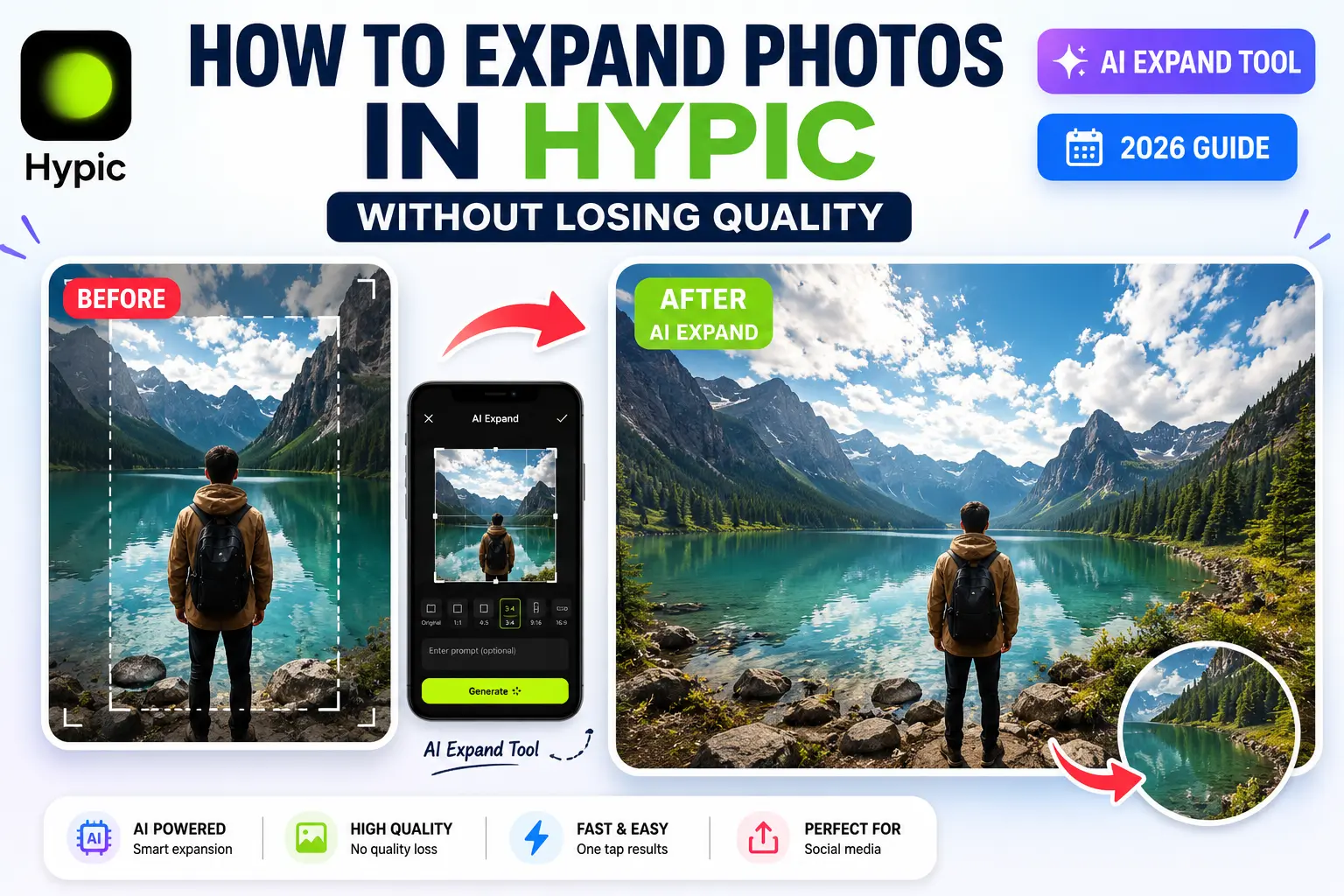
Using Hypic’s AI Expand feature, you can extend your image naturally without reducing quality. The tool intelligently fills missing areas using artificial intelligence and creates balanced, wider images within seconds.
In this guide, you’ll learn exactly how to expand photos in Hypic, use AI prompts for better results, avoid common mistakes, and get cleaner outputs.
Quick Answer
To expand a photo in Hypic:
- Open the Hypic app
- Upload your image
- Tap Crop > AI Expand
- Adjust image ratio
- Add a prompt (optional)
- Tap Generate
- Choose your preferred result and save
Hypic automatically fills empty spaces while keeping the image natural and high quality.
What Is Hypic AI Expand?
Hypic AI Expand is an AI-powered image extension feature that intelligently enlarges photos by generating missing background areas.
Instead of stretching pixels or manually editing edges, AI analyzes:
- Background colors
- Object positions
- Lighting conditions
- Patterns and textures
Then it creates realistic extensions around your original image.
This helps users:
- Fix cropped images
- Create social media banners
- Extend wallpapers
- Add extra background space
- Improve composition
Unlike traditional editing tools, Hypic uses AI prediction to generate more natural-looking results.
You can also explore more editing tools and features inside our Hypic apps collection.
Why People Use AI Expand in Hypic
Many users use AI Expand because manually extending photos takes time and editing skills.
Popular use cases include:
✅ Fixing accidentally cropped photos
✅ Converting portrait photos into landscape format
✅ Creating Instagram story backgrounds
✅ Designing YouTube thumbnails
✅ Making wallpapers
✅ Improving photo composition
The process takes only a few seconds.
Step-by-Step: How to Expand Photos in Hypic
Follow these steps carefully:
Step 1: Open Hypic App
Launch the Hypic app on your device.
If you haven’t installed it yet, download Hypic for iOS or use Hypic for PC for a larger editing workspace.
Step 2: Upload Your Photo
Tap:
Import → Select Photo
Choose the image you want to expand.
For best results:
- Use high-resolution images
- Keep the main subject visible
- Avoid blurry photos
Step 3: Open Crop Settings
Once the editor opens:
Tap:
Adjust → Crop
You will see different aspect ratio options.
Examples:
- 16:9
- 4:5
- 1:1
- Free resize
Choose your preferred image size.
Step 4: Tap AI Expand
After adjusting canvas size:
Select:
AI Expand
Now Hypic will analyze your image.
You have two methods:
Method 1: Expand Without Prompt
Simply tap:
Generate
Hypic automatically creates additional background content.
Best for:
- Sky backgrounds
- Nature photos
- Simple scenes
Method 2: Expand Using Text Prompts
You can also guide AI manually.
Example prompts:
“Continue sunset beach background”
“Extend city buildings naturally”
“Add mountains and cloudy sky”
“Expand grass field”
After entering your prompt:
Tap Generate
Hypic usually creates multiple output variations.
Choose the result you like most.
Real Tips for Better AI Expand Results
After testing multiple images, these methods consistently produce cleaner outputs:
Use High-Quality Photos
Clear images help AI detect edges more accurately.
Keep Subjects Near Center
Centered subjects reduce strange AI distortions.
Avoid Busy Backgrounds
Too many objects confuse AI generation.
Simple backgrounds work better.
Try Multiple Generations
Don’t settle for the first result.
Generate several variations and compare.
If some AI tools behave differently on your device, trying older Hypic versions may sometimes help.
Mention Lighting Inside Prompts
Examples:
“Sunset lighting”
“Soft studio lighting”
“Golden hour background”
This improves realism.
Common Mistakes People Make
Many users think AI Expand always creates perfect results.
Not exactly.
Avoid these mistakes:
❌ Using blurry images
❌ Expanding too aggressively
❌ Using confusing prompts
❌ Cropping subjects near edges
❌ Ignoring image quality before editing
Small adjustments can improve results dramatically.
Hypic AI Expand vs Traditional Crop Tools
| Feature | Hypic AI Expand | Traditional Crop |
|---|---|---|
| Uses AI | Yes | No |
| Creates new background | Yes | No |
| Maintains composition | Yes | Limited |
| Beginner friendly | Very easy | Medium |
| Time required | Seconds | Manual editing |
Hypic clearly saves time for beginners.
Final Verdict
Hypic AI Expand is one of the easiest ways to extend photos without losing quality.
Instead of manually recreating backgrounds, AI automatically fills missing areas while preserving image aesthetics.
For quick edits, social media content, and everyday photo improvements, the tool works surprisingly well.
If results look strange at first, simply regenerate again or improve your prompt.
Small changes often create significantly better outcomes.
Want to see how Hypic compares with other editing apps? Explore our latest Hypic comparisons.
FAQs
Can Hypic expand photos without prompts?
Yes. You can leave the prompt box empty and let AI automatically generate the missing background.
Does AI Expand reduce image quality?
No. In most cases, Hypic maintains image quality while generating additional areas.
Is Hypic AI Expand free?
Basic AI Expand features are available in the free version, although some advanced features may require premium access.
Which photos work best with AI Expand?
High-resolution photos with simple backgrounds generally produce the best results.
Can I use AI Expand for Instagram posts?
Yes. Many users use AI Expand for Instagram stories, posts, banners, and social media content.