AI Skin Glow in Hypic: How to Get a Natural Summer Glow (2026 Guide)
Quick Answer
Want glowing skin in your photos without making it look fake or overly edited?
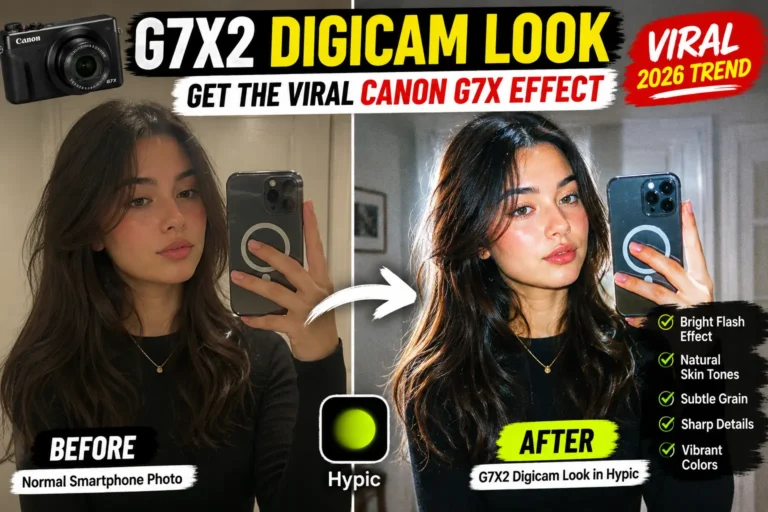
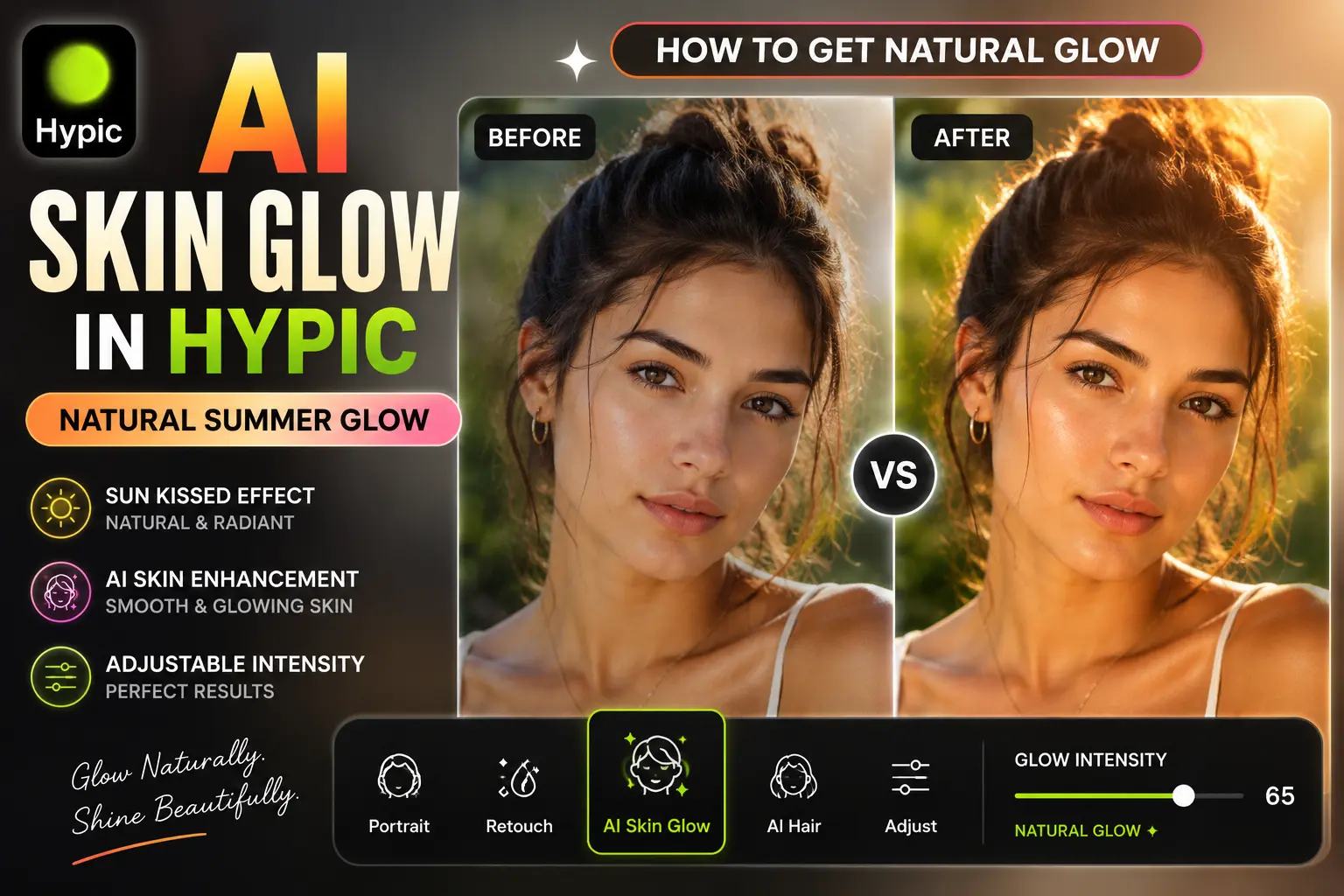
AI Skin Glow in Hypic helps enhance skin brightness, warmth, and smoothness to create a natural sun-kissed look. It’s a popular feature for selfies, portraits, Instagram photos, and lifestyle content because it can make skin appear healthier and more radiant in just a few taps.
AI Skin Glow is one of several AI-powered editing features available in Hypic.
In this guide, you’ll learn how to use AI Skin Glow in Hypic, how to achieve a natural summer glow, and tips for avoiding overedited results.
What Is AI Skin Glow in Hypic?
AI Skin Glow is a portrait enhancement feature that uses artificial intelligence to improve the appearance of skin in photos.
Instead of applying a heavy beauty filter, the tool analyzes facial details and lighting conditions before making subtle adjustments.
It can help improve:
- Skin brightness
- Warm skin tones
- Natural radiance
- Facial highlights
- Overall portrait appearance
The goal is to create a healthy-looking glow while maintaining realistic skin texture.
Why AI Skin Glow Has Become Popular
Many users want their photos to look brighter and more vibrant without appearing heavily edited.
AI Skin Glow helps achieve that balance.
Creates a Natural Summer Glow
The effect can add warmth and brightness similar to natural sunlight.
Improves Selfies Instantly
Even basic selfies can appear more polished and professional.
Perfect for Social Media
Creators often use the effect before posting content on Instagram, TikTok, and Pinterest.
Beginner-Friendly Editing
Most users can achieve noticeable improvements without advanced editing skills.
How to Use AI Skin Glow in Hypic
Follow these simple steps.
Step 1: Open Hypic
Launch the Hypic app and upload your portrait or selfie.
For the best results, use a high-quality image with good lighting.
Step 2: Open Portrait Tools
Navigate to the portrait or beauty editing section.
Depending on your app version, the feature may appear under:
- Portrait
- Beauty
- Retouch
- AI Enhancement
If you can’t find the tool, check whether you’re using one of the latest app releases.
Step 3: Select AI Skin Glow
Tap the AI Skin Glow tool.
The AI will analyze facial details and automatically apply enhancements.
Step 4: Adjust Intensity
Start with a moderate setting.
A natural glow usually looks more realistic than maximum intensity.
Step 5: Compare Before and After
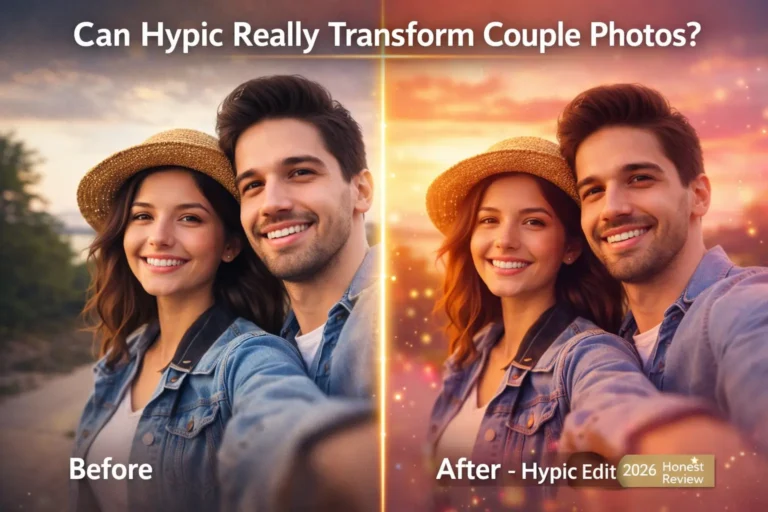
Review the results carefully.
Pay attention to:
- Skin brightness
- Color balance
- Facial highlights
- Natural appearance
Step 6: Save Your Photo
Export the image in high quality for the best results.
How to Create a Natural Sun-Kissed Effect
Many users want a glow that resembles natural sunlight rather than a beauty filter.
To achieve a realistic sun-kissed look:
- Use warm lighting photos
- Avoid maximum glow intensity
- Keep natural skin texture visible
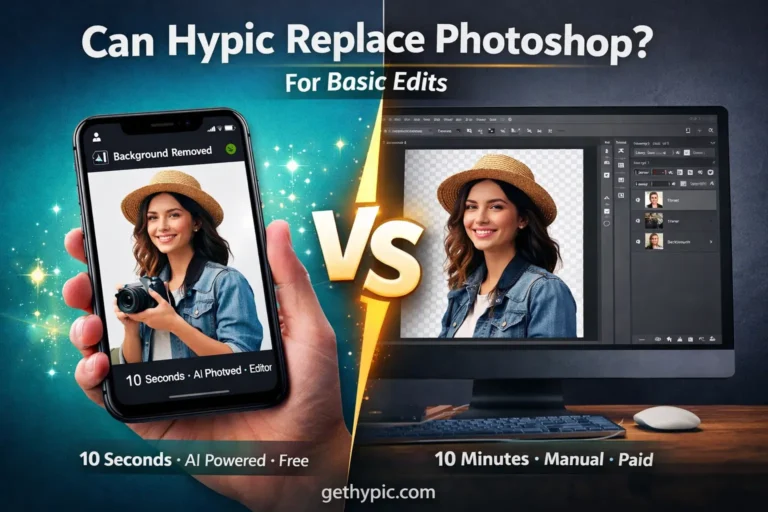
- Combine glow effects with subtle color grading and creative AI-generated backgrounds.
- Maintain realistic facial details
Small adjustments usually create the most professional-looking results.
Best Photos for AI Skin Glow
The feature generally works best on:
- Selfies
- Portrait photography
- Fashion photos
- Travel photos
- Lifestyle content
- Instagram posts
- Pinterest aesthetic photos
Photos taken in natural daylight often produce the best results.
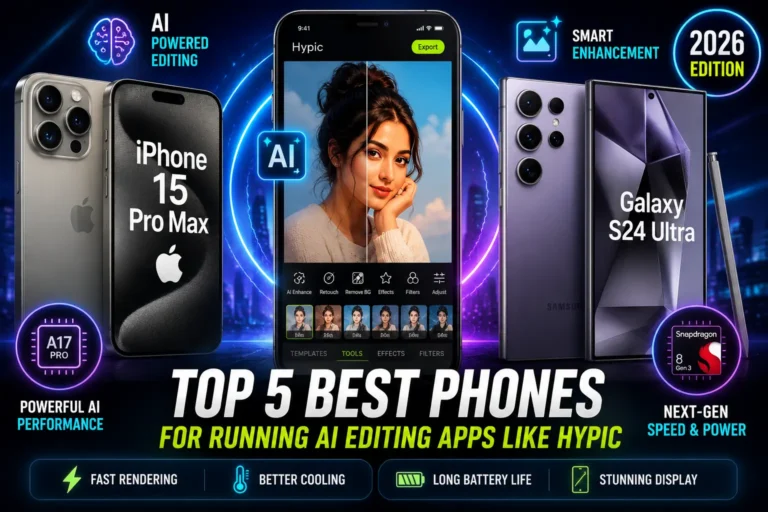
Many creators prefer editing these images on a larger screen for better control over portrait details.
AI Skin Glow vs Traditional Beauty Filters
| Feature | AI Skin Glow | Traditional Filters |
|---|---|---|
| Natural Appearance | High | Moderate |
| Skin Texture Preservation | Better | Often Reduced |
| Realistic Results | Excellent | Varies |
| Social Media Appeal | High | High |
| Ease of Use | Easy | Easy |
For most users, AI Skin Glow creates a more realistic appearance.
Tips for Better Results
Avoid Overediting
Too much glow can make skin appear unnatural.
Use Good Lighting
AI tools perform better when the original image is clear.
Combine with Other Portrait Tools
Many creators combine AI Skin Glow with:
- AI Hair
- Portrait Enhancement
- AI Flash
- Skin Retouching
Preserve Natural Texture
Healthy-looking skin usually appears more realistic than perfectly smooth skin.
Common Problems and Solutions
Skin Looks Too Bright
Reduce the glow intensity and reapply.
Results Look Artificial
Use a lower setting and avoid combining too many beauty effects.
Uneven Skin Tone
Start with a higher-quality image and ensure lighting is balanced.
Who Should Use AI Skin Glow?
This feature is ideal for:
Content Creators
Enhance selfies and social media photos.
Influencers
Create polished portraits without excessive editing.
Fashion Creators
Improve portrait quality while maintaining a natural appearance.
Everyday Users
Quickly improve photos with minimal effort.
The feature is available on both Android and iPhone versions of the app.
Frequently Asked Questions
What does AI Skin Glow do in Hypic?
AI Skin Glow enhances skin brightness, warmth, and overall radiance while maintaining a natural look.
Can AI Skin Glow create a sun-kissed effect?
Yes. When used moderately, it can create a warm and natural summer glow appearance.
Is AI Skin Glow suitable for selfies?
Yes. It works particularly well on selfies and close-up portraits.
Does AI Skin Glow make skin look fake?
Not usually. Natural-looking results are possible when the effect is applied in moderation.
Can beginners use AI Skin Glow?
Yes. The feature is designed to be beginner-friendly and requires minimal editing knowledge.
Final Thoughts
AI Skin Glow in Hypic is a simple yet effective way to enhance portraits, improve skin radiance, and create a natural summer glow.
Whether you’re editing selfies, fashion photos, travel pictures, or social media content, the tool can help your images appear brighter and more polished without looking overedited.
For the best results, focus on subtle adjustments and combine AI Skin Glow with other portrait enhancement tools available in Hypic.