How to Use Reference Photos in Hypic (2026 Guide)
Quick Answer
Want to edit a photo using the style, pose, color, or appearance of another image?
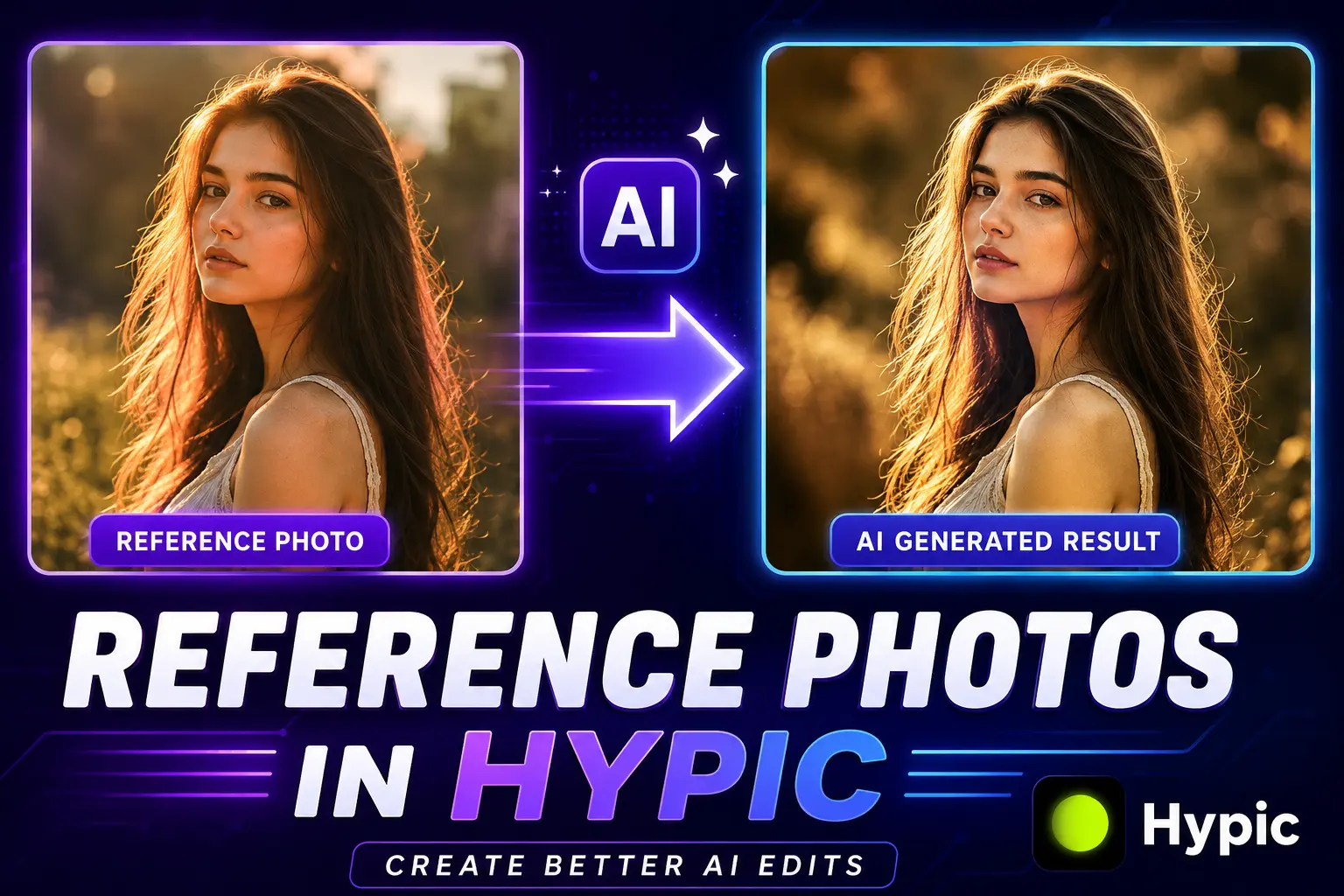
The Reference Photo feature in Hypic allows you to upload a reference image that helps the AI understand the look you want to achieve. Instead of relying only on text prompts, you can guide the AI using a visual example, making photo edits more accurate and consistent.
In this guide, you’ll learn how to use reference photos in Hypic, when to use them, and how to get better results with AI-powered photo editing.
Before using advanced AI features like reference images, make sure you’re using the latest version of Hypic for the best editing experience.
What Is a Reference Photo in Hypic?
A reference photo is an image that you provide to help the AI understand the style, composition, colors, or visual elements you want to apply to another photo.
Rather than describing everything with words, you can show the AI an example image and let it use that image as a visual guide.
This feature is commonly used for:
- Style transfer
- Portrait enhancements
- Aesthetic photo edits
- Color matching
- Fashion photography
- Social media content creation
- AI-generated creative edits
Reference photos can significantly improve editing accuracy because the AI receives visual information instead of relying only on text instructions.
Why Use Reference Photos in Hypic?
Many users overlook this feature, but it can dramatically improve AI editing results.
Here are some of the biggest advantages.
If you’re exploring more AI editing tools, check out our collection of the best AI photo editing apps available today.
More Accurate Results
Text prompts can sometimes be vague.
A reference image provides visual guidance that helps the AI better understand your goal.
Consistent Editing Style
Creators often use reference photos to maintain a similar look across multiple images.
This is especially useful for:
- Instagram feeds
- Pinterest content
- Brand photography
- Personal portfolios
Better Color Matching
If you want a specific color palette, a reference image can help the AI reproduce similar tones and moods.
Faster Editing
Instead of writing long prompts, you can simply upload an example image.
The AI can often understand your desired style more quickly.
How to Use Reference Photos in Hypic
Follow these steps to edit photos using a reference image.
Step 1: Open Hypic
Launch the Hypic app and select the photo you want to edit.
Choose a high-quality image for the best results.
If you prefer editing on a larger screen, you can also use Hypic on PC for more precise AI photo editing.
Apple users can also use Hypic on iPhone and iPad to create AI-powered edits with reference photos.
Step 2: Access AI Editing Tools
Navigate to the AI editing section.
Depending on your app version, the feature may appear under:
- AI Tools
- AI Edit
- AI Generator
- Reference Image
- Style Reference
Step 3: Upload Your Main Photo
Select the photo that you want to modify.
This will be your base image.
Step 4: Add a Reference Photo
Upload the image that represents the style or look you want.
For example:
- A portrait with cinematic lighting
- A travel photo with warm colors
- A fashion image with a specific aesthetic
- A photo with a desired pose
- An image with a unique color grade
The AI will analyze the reference image before generating edits.
Step 5: Enter Additional Instructions
If the feature supports prompts, provide extra details.
Examples:
- Keep natural skin tones
- Apply cinematic lighting
- Use warm sunset colors
- Maintain facial details
- Create a soft portrait look
Combining a reference photo with detailed Hypic AI prompts usually produces the most accurate and realistic AI-generated edits.
Step 6: Generate the Edit
Tap Generate and allow the AI to process the image.
The AI will use information from both your original photo and the reference image.
Step 7: Review and Save
If the result isn’t perfect, try:
- A different reference image
- A more detailed prompt
- A higher-quality source photo
Once satisfied, save the final image.
Best Types of Reference Photos
Not every image works equally well.
Here are some of the best options.
Style References
Use images with a clear visual style.
Examples:
- Cinematic photography
- Vintage edits
- Moody portraits
- Bright lifestyle photos
Color References
Choose images with colors you want to replicate.
Examples:
- Golden hour photography
- Blue-toned aesthetics
- Warm travel photos
Pose References
Portrait creators often use reference photos for pose inspiration.
Lighting References
Images with strong lighting can help guide the AI toward a specific mood.
Reference Photo vs Text Prompt
Many users wonder whether they should use a prompt or a reference image.
| Feature | Text Prompt | Reference Photo |
|---|---|---|
| Visual Accuracy | Moderate | High |
| Style Consistency | Good | Excellent |
| Color Matching | Limited | Strong |
| Ease of Use | Easy | Easy |
| Creative Control | Good | Excellent |
For the most accurate results, many creators use both together.
Still deciding which editor suits your workflow? Explore our latest photo editing app comparisons before choosing the right tool.
Best Uses for Reference Photos in Hypic
Reference images are particularly useful for:
Portrait Editing
Match a specific portrait style or mood.
Fashion Photography
Maintain a consistent look across multiple images.
Social Media Content
Create a cohesive Instagram or Pinterest aesthetic.
Travel Photography
Apply a consistent color grade to vacation photos.
Creative AI Art
Generate edits inspired by a specific visual style.
Tips for Better AI Reference Photo Editing
Choose High-Quality Reference Images
The AI can only learn from what it sees.
Clear images generally produce better results.
Use Similar Subjects
If you’re editing a portrait, use another portrait as the reference.
Using completely unrelated images can produce inconsistent results.
Combine References with Prompts
A strong reference image plus a detailed prompt often creates the best outcome.
Avoid Overly Edited References
Extreme filters and unrealistic effects can confuse the AI.
Natural-looking images often work better.
Test Multiple References
Sometimes a small change in the reference image can dramatically improve results.
Common Problems and Solutions
The Result Doesn’t Match the Reference
Try using a clearer reference image with a stronger visual style.
Colors Look Different
Choose a reference photo with more distinct colors and lighting.
The AI Changes Too Much
Use additional prompts to tell the AI which elements should remain unchanged.
The Edit Looks Artificial
Use a higher-quality source image and a more natural reference photo.
Who Should Use Reference Photos?
This feature is ideal for:
- Content creators
- Photographers
- Influencers
- Designers
- Social media managers
- AI art enthusiasts
- Anyone seeking more consistent edits
Even beginners can achieve professional-looking results with the right reference image.
Frequently Asked Questions
What is a reference photo in Hypic?
A reference photo is an image used to guide AI editing by providing visual examples of the style, colors, lighting, or composition you want.
Can I use a reference image in Hypic for portrait editing?
Yes. Many users use reference photos to improve portrait styles, lighting, and aesthetics.
Are reference photos better than prompts?
Both are useful, but reference photos often provide more accurate visual guidance.
Can I combine prompts and reference images?
Yes. Combining both usually produces the most precise results.
What type of reference photo works best?
High-quality images with clear styles, colors, and lighting generally work best.
Is the Reference Photo feature beginner-friendly?
Yes. Most users can learn it within a few minutes, even without editing experience.
Final Thoughts
The Reference Photo feature in Hypic is one of the most effective ways to improve AI-generated edits. By showing the AI exactly what style, colors, lighting, or mood you want, you can achieve more accurate and consistent results than using text prompts alone.
Whether you’re creating aesthetic social media content, editing portraits, matching color grades, or experimenting with AI-generated styles, reference photos can help you get professional-looking results with less effort.
For more tutorials, hidden features, and AI editing guides, explore our latest Hypic editing articles.