How to Remove Pimples Naturally Using Concealer Pen in Hypic (2026 Guide)
Quick Answer
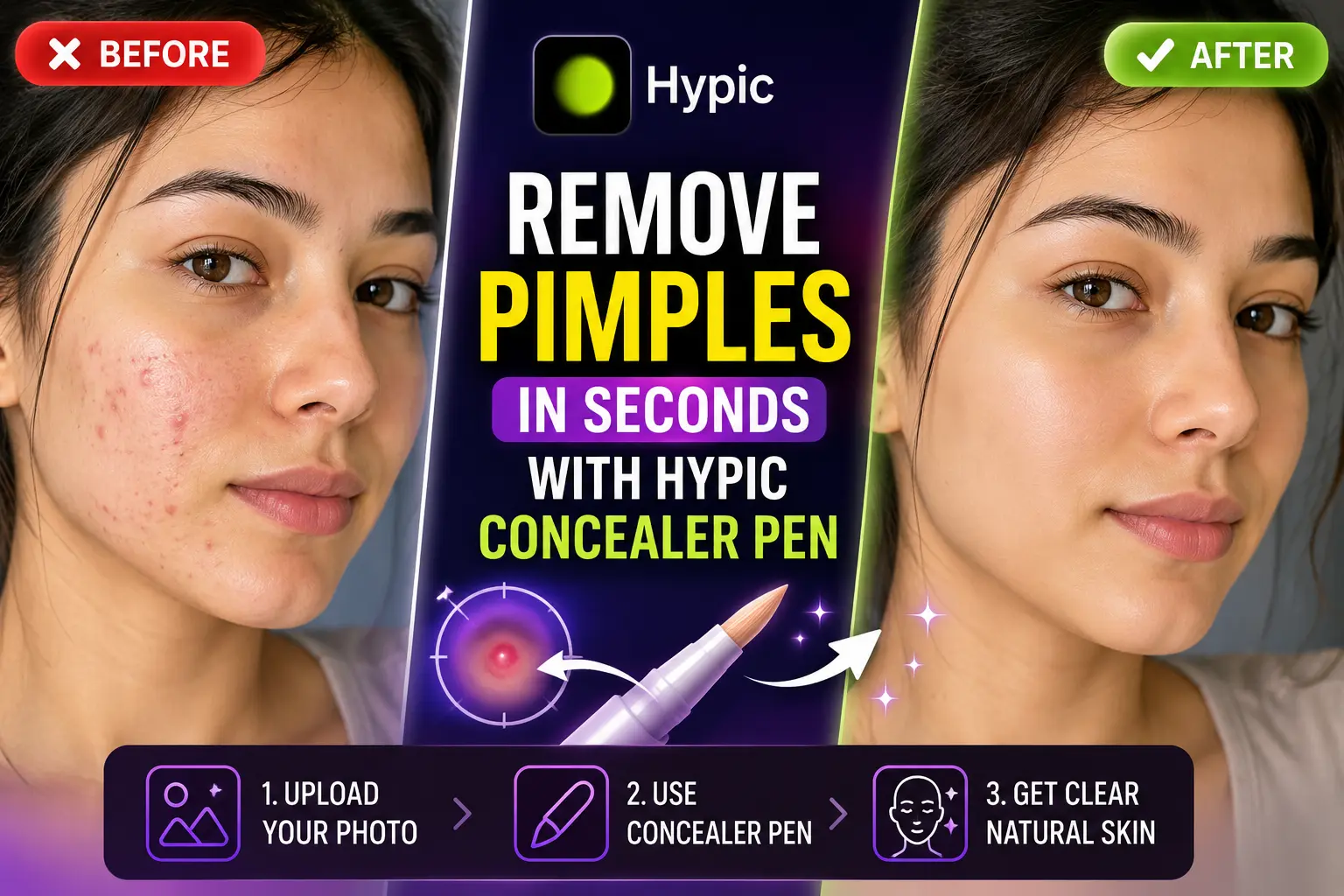
To remove pimples naturally in Hypic, open your photo, select the Concealer Pen tool, brush over the blemish, and let AI automatically blend the surrounding skin texture. The feature can remove pimples, acne marks, dark spots, and minor skin imperfections while maintaining a natural-looking appearance.
Introduction
Took the perfect selfie but noticed a pimple ruining the entire photo?
Small skin imperfections such as pimples, acne marks, dark spots, and blemishes often appear more visible in photos than they do in real life. While professional photo editors can remove these imperfections manually, the process usually requires advanced editing skills and a lot of time.
Thankfully, Hypic offers a smarter solution.
The Concealer Pen is an AI-powered skin retouch tool that helps remove pimples and blemishes within seconds. Instead of manually editing every spot, the AI analyzes nearby skin texture and automatically blends the selected area for a cleaner and more natural result.
Whether you’re editing selfies, portraits, profile pictures, or social media content, Concealer Pen makes AI skin retouching simple for everyone.
In this guide, you’ll learn how to use Concealer Pen in Hypic, get better results, and avoid common mistakes that make edited photos look fake.
Before using advanced beauty tools like Concealer Pen, make sure you’re using the latest version of Hypic to access all AI retouch features and improvements.
What Is Concealer Pen in Hypic?
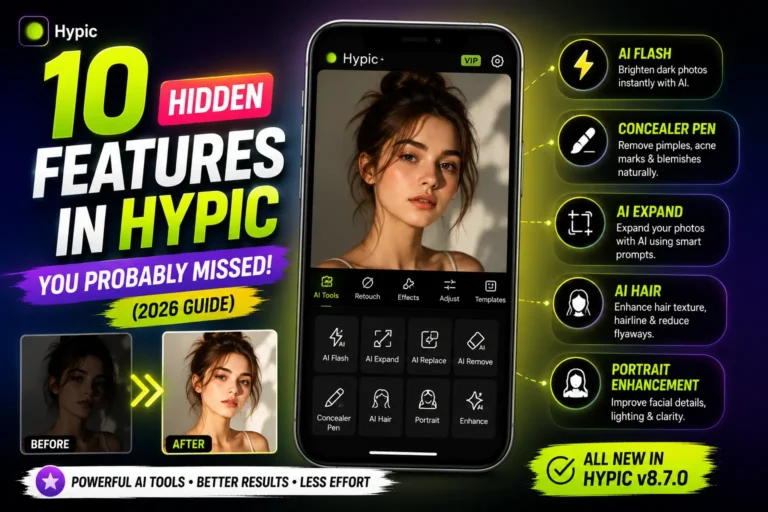
Concealer Pen is an advanced AI skin retouch feature available inside Hypic’s beauty editing tools.
It is specifically designed to remove minor facial imperfections while preserving realistic skin texture and facial details.
The tool can help reduce or remove:
- Pimples
- Acne marks
- Dark spots
- Small scars
- Facial blemishes
- Minor skin imperfections
Unlike traditional blur filters that often make skin look plastic, Concealer Pen intelligently analyzes surrounding skin patterns and fills the selected area naturally.
This makes it one of the most useful tools for anyone looking to remove pimples in Hypic without creating an over-edited appearance.
My Experience Using Concealer Pen
After testing Concealer Pen on multiple selfie and portrait photos, I found that it performs best when removing temporary blemishes such as pimples, acne marks, and small dark spots.
The results generally look natural because the AI preserves surrounding skin texture rather than simply blurring the area. However, like most AI retouch tools, the best results come from moderate use.
If you remove every tiny detail from the skin, the final image may start to look unrealistic. For natural-looking portraits, it’s usually better to remove only noticeable imperfections.
Why Many Users Prefer Concealer Pen
Many users choose Concealer Pen because it simplifies skin retouching.
If you’re exploring more mobile editing solutions, check out our collection of AI photo editing apps for creators and content makers.
Instead of spending several minutes manually correcting each blemish, the AI handles most of the work automatically.
Main Benefits
✅ Removes pimples in seconds
✅ Reduces acne marks naturally
✅ Helps remove dark spots
✅ Preserves realistic skin texture
✅ Beginner-friendly editing
✅ Improves selfies instantly
✅ Saves editing time
✅ AI-powered skin retouching
How to Remove Pimples Using Concealer Pen in Hypic
Step 1: Open Hypic
Launch the Hypic app and import the photo you want to edit.
Users who prefer a larger screen can also edit photos on PC for better precision when retouching skin imperfections.
For the best results, choose a high-resolution image where facial details are clearly visible.
Step 2: Access the Retouch Tools
After importing the image, open the editing menu.
Navigate to the Beauty or Retouch section and locate:
Concealer Pen
Apple users can easily edit photos on iPhone and iPad using the same AI-powered beauty tools available in Hypic.
Step 3: Zoom Into the Affected Area
Zoom into the area containing:
- Pimples
- Acne marks
- Dark spots
- Minor blemishes
Working closely helps improve precision and allows the AI to detect imperfections more accurately.
Step 4: Apply Concealer Pen
Gently brush over the unwanted imperfection.
The AI will automatically:
- Analyze nearby skin texture
- Match surrounding skin tones
- Remove visible blemishes
- Preserve natural facial details
Wait a few seconds for processing.
Step 5: Review the Results
Compare the original image with the edited version.
If additional imperfections remain, repeat the process carefully.
Once satisfied, tap:
Export
to save your final image.
Best Photos for Concealer Pen
Selfies
Close-up selfies often benefit the most because skin imperfections are more visible.
Portrait Photography
Portrait images can appear cleaner and more professional after removing temporary blemishes.
Social Media Photos
Instagram posts, TikTok content, profile pictures, and reels thumbnails often require quick touch-ups.
Beauty and Fashion Images
Beauty-focused photos can look more polished while still maintaining natural skin texture.
Concealer Pen vs Manual Skin Retouching
Both methods can improve skin appearance, but they serve different users.
| Feature | Concealer Pen | Manual Retouching |
|---|---|---|
| Ease of Use | Excellent | Moderate |
| Editing Speed | Very Fast | Slow |
| Beginner Friendly | Yes | No |
| Learning Curve | Low | High |
| Natural Results | Good | Excellent |
| Time Required | Seconds | Several Minutes |
For most users, Concealer Pen offers the best balance between speed and quality.
Manual retouching provides more control but requires experience and significantly more editing time.
Still comparing different editing tools? Browse our latest photo editing app comparisons to find the best option for your workflow.
Concealer Pen vs Skin Smoothing
Many beginners confuse Concealer Pen with skin smoothing tools.
| Feature | Concealer Pen | Skin Smoothing |
|---|---|---|
| Removes Pimples | ✅ | ⚠️ Limited |
| Removes Acne Marks | ✅ | ⚠️ Limited |
| Preserves Texture | ✅ | ❌ |
| Natural Appearance | ✅ | ⚠️ |
| Spot-Based Editing | ✅ | ❌ |
| One-Tap Retouch | ✅ | ❌ |
For removing individual blemishes, Concealer Pen is usually the better option.
Tips for Natural-Looking Results
To achieve professional-looking edits:
✔ Remove only temporary blemishes
✔ Keep natural skin texture visible
✔ Avoid excessive retouching
✔ Use high-resolution photos
✔ Zoom in while editing
✔ Compare before-and-after results
✔ Edit only noticeable imperfections
Remember: natural-looking skin often appears more attractive than heavily retouched skin.
Common Problems and Fixes
Concealer Pen Not Available?
Try:
- Updating Hypic to the latest version
- Restarting the application
- Checking feature availability in your version
Some features may be missing if you’re using older versions of Hypic that don’t include the latest AI retouch updates
Skin Looks Too Smooth?
Over-editing is the most common mistake.
Fix:
- Retouch fewer areas
- Leave natural skin texture intact
- Focus only on visible blemishes
AI Misses Certain Pimples?
Some imperfections may require more precise editing.
Try:
- Zooming in closer
- Applying the tool again
- Editing smaller areas individually
Higher-quality images usually produce better AI retouch results.
Why Use Concealer Pen Instead of Traditional Editing?
Traditional photo editing often requires:
- Spot Healing Brushes
- Clone Stamp Tools
- Layer Masks
- Manual Color Corrections
These methods can be effective but require skill and time.
Concealer Pen automates most of the process using AI.
This makes it ideal for:
- Beginners
- Content creators
- Social media users
- Casual photo editors
- Quick portrait retouching
Instead of spending several minutes correcting every imperfection, users can often achieve similar results in seconds.
Final Verdict
If you’re looking for a fast, beginner-friendly, and natural way to remove pimples in Hypic, Concealer Pen is one of the best AI skin retouch tools currently available.
It can quickly reduce the appearance of pimples, acne marks, dark spots, and minor blemishes while preserving realistic skin texture. Unlike traditional editing methods that require time and experience, Concealer Pen simplifies the process with intelligent AI automation.
Whether you’re editing selfies, portraits, profile pictures, or social media content, this tool provides an excellent balance between speed, simplicity, and natural-looking results.
For most users, it’s one of the easiest ways to achieve cleaner and more professional-looking photos without over-editing.
Frequently Asked Questions
Is Concealer Pen free in Hypic?
Availability depends on the version of Hypic you are using. Some features may require the latest update.
Can Hypic remove acne naturally?
Yes. Concealer Pen can reduce the appearance of pimples, acne marks, and minor skin imperfections while maintaining a realistic look.
Does Concealer Pen remove dark spots?
Yes. It can help reduce the visibility of small dark spots and blemishes, especially in high-quality photos.
Can Concealer Pen remove acne scars?
It works best on temporary blemishes and minor acne marks. Deep scars may require additional editing.
Does Concealer Pen make skin look fake?
No. When used moderately, the tool preserves natural skin texture and realistic facial details.
Is Concealer Pen better than manual retouching?
For most users, yes. It is significantly faster and easier to use, while manual retouching offers greater control for advanced editors.
Can I use Concealer Pen on group photos?
Yes, although results are generally better when faces are clearly visible.
Can Concealer Pen reduce photo quality?
No. The tool is designed to improve appearance while maintaining overall image quality.