How to Use AI Flash in Hypic to Improve Dark Photos (2026 Guide)
Quick Answer
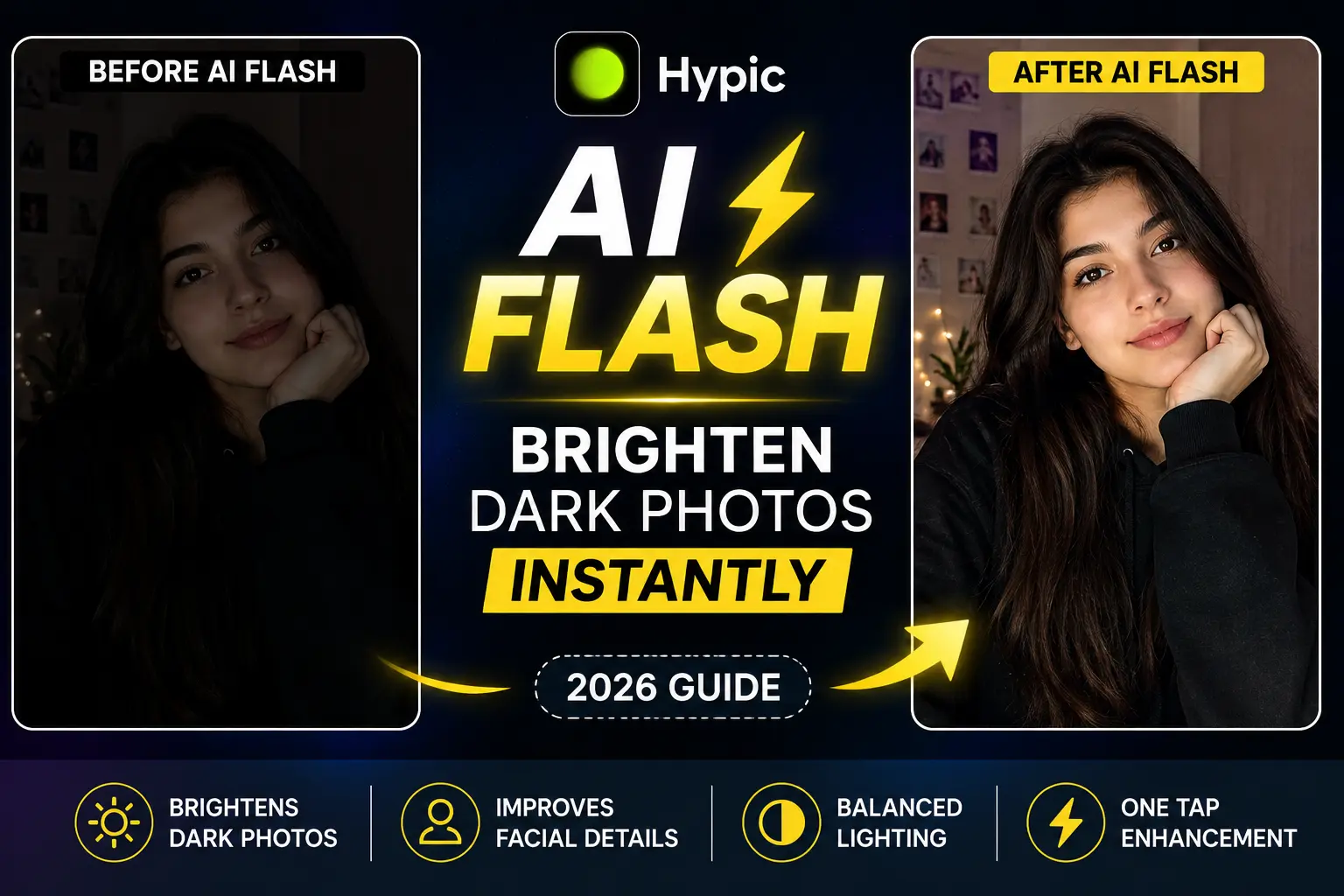
AI Flash in Hypic is an AI-powered feature that automatically improves dark and low-light photos by enhancing brightness, shadows, and overall lighting balance. Simply import your image, open the AI Flash tool, apply the effect, and export the enhanced result in seconds.
Introduction
Ever captured a great photo only to realize later that it looks too dark?
Low-light selfies, indoor portraits, and night photography often lose important details. Faces become unclear, shadows look too heavy, and colors appear dull. Traditionally, fixing these issues required manually adjusting brightness, contrast, exposure, and shadows.
Hypic introduced AI Flash to simplify this process.
Instead of spending time editing every setting manually, AI Flash intelligently analyzes your image and automatically applies balanced lighting improvements where needed. The result looks brighter, cleaner, and more natural without making your photo appear over-edited.
If you are using an older release, download the latest Hypic Mod APK version to access AI Flash and newly released AI tools.
Table of Contents
- What Is AI Flash in Hypic?
- How to Use AI Flash in Hypic
- AI Flash vs Manual Editing
- Best Photos for AI Flash
- Tips for Better Results
- Common Problems and Fixes
- Final Verdict
- FAQs
What Is AI Flash in Hypic?
AI Flash is an intelligent AI photo enhancement tool inside Hypic designed specifically for poor lighting conditions.
The system analyzes:
- Dark areas
- Facial details
- Image exposure
- Shadows
- Lighting balance
After processing the image, it automatically improves brightness and restores visual clarity.
Instead of manually adjusting:
- Brightness
- Highlights
- Shadows
- Exposure
- Contrast
AI Flash performs these edits automatically.
Main Benefits
✅ Brightens dark photos instantly
✅ Improves low-light image quality
✅ Makes faces clearer
✅ Creates balanced lighting
✅ Saves editing time
✅ Works with one tap
How to Use AI Flash in Hypic
Follow these simple steps:
Step 1: Open Hypic
Launch the Hypic app.
If you want to use Hypic on desktop, check our Hypic For PC guide.
Tap:
Import Photo
to select an image from your gallery.
Step 2: Choose a Dark Photo
AI Flash usually works best with:
- Night photography
- Indoor portraits
- Selfies in poor lighting
- Underexposed photos
- Social media pictures
Step 3: Open AI Enhancement Tools
After importing the image:
Scroll through editing tools and locate:
Hypic also offers creative AI tools and editing ideas in our Hypic Prompts collection.
AI Flash
inside the AI tools section.
Step 4: Apply AI Flash
Tap:
AI Flash
The system automatically scans:
- facial details
- lighting balance
- shadows
- dark areas
- image exposure
Wait a few seconds for processing.
Step 5: Compare Results
Compare:
Before → After
If satisfied:
Tap Export
Save your final enhanced photo.
AI Flash vs Manual Editing
Many users still manually adjust brightness and exposure. However, AI Flash saves both time and effort.
| Feature | AI Flash | Manual Editing |
|---|---|---|
| Speed | One Tap | Multiple Steps |
| Beginner Friendly | Yes | Difficult |
| Lighting Balance | Automatic | Manual |
| Time Required | Few Seconds | Several Minutes |
| Consistency | High | Depends on Skill |
| Learning Needed | No | Yes |
For beginners, AI Flash is usually the faster and simpler option.
You can also explore detailed Hypic Comparisons to see how its AI tools perform against similar editing apps.
Why Use AI Flash Instead of Manual Editing?
Manual editing can become frustrating.
You often need to adjust:
- brightness
- contrast
- highlights
- exposure
- shadows
Even small mistakes can make photos look unnatural.
AI Flash handles everything automatically and creates cleaner results with minimal effort.
This makes it especially useful for beginners and casual users.
Best Photos for AI Flash
AI Flash gives the best results on:
Night Photography
Outdoor images with weak lighting.
Indoor Portraits
Photos captured inside rooms with limited light.
Selfies
Especially front camera photos taken in dark environments.
Underexposed Images
Pictures that appear darker than expected.
Social Media Content
Instagram posts, profile pictures, and stories.
Tips for Better Results
To improve output quality:
✔ Use high-resolution images
✔ Keep faces visible
✔ Avoid heavily blurred photos
✔ Use balanced framing
✔ Try portrait retouch after AI Flash
✔ Avoid extremely low-quality images
Small improvements in image quality often create significantly better AI enhancement results.
Common Problems and Fixes
AI Flash Not Appearing?
Try:
- Updating Hypic
- Restarting the app
- Checking feature availability
You can also download Hypic old versions and compare available tools.
Photo Looks Too Bright?
Some images may become overexposed.
Fix:
Reduce intensity manually after applying AI Flash.
Processing Takes Too Long?
Possible reasons:
- Slow internet
- Large image files
- Temporary server issues
Wait a few seconds and try again.
Final Verdict
AI Flash is one of the most useful additions introduced in recent Hypic updates.
Instead of manually adjusting every lighting setting, the feature automatically improves brightness, shadows, and image balance in seconds.
Whether you edit portraits, selfies, or social media photos, AI Flash can help create cleaner and more professional-looking images effortlessly.
Looking for more editing features? Explore all available AI tools and editors in our Apps section.
FAQs
Is AI Flash free in Hypic?
Most versions include AI Flash, although availability may depend on app updates.
Does AI Flash work offline?
Some AI features may require an active internet connection.
Can AI Flash fix blurry photos?
No. AI Flash mainly improves lighting rather than image sharpness.
Why can’t I find AI Flash?
Update Hypic to the latest version because older releases may not include newer AI tools.
Does AI Flash reduce image quality?
No. AI Flash is designed to improve image appearance while maintaining quality.