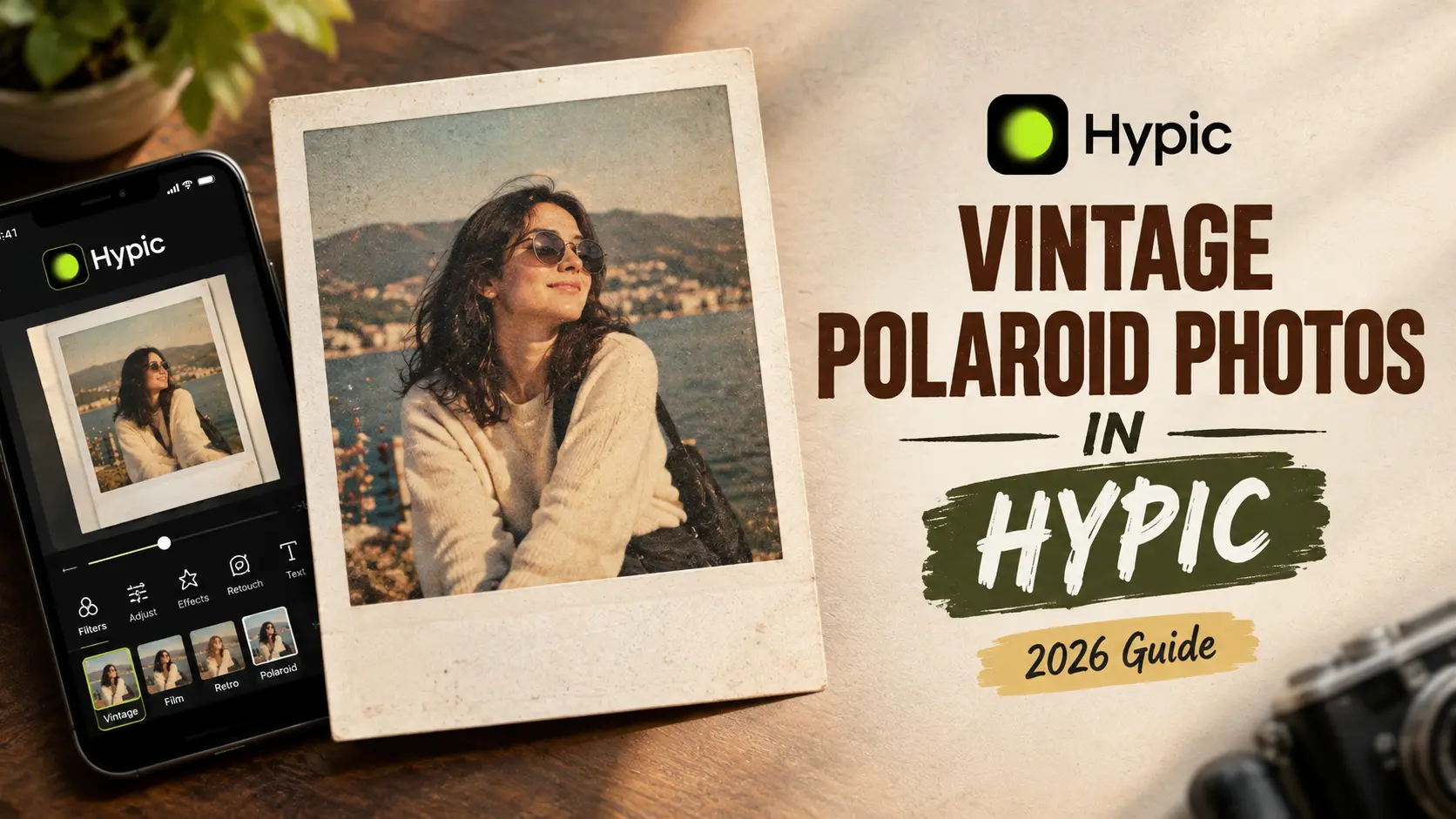
How to Create Vintage Polaroid Photos in Hypic (2026 Guide)
Want to give your photos a classic Polaroid look without using an old instant camera? Hypic makes it easy to create nostalgic, retro-style photos with soft colors, faded tones, subtle grain, and Polaroid-inspired frames.
In this guide, you’ll learn how to create vintage Polaroid photos in Hypic, which adjustments work best, and how to keep the final result natural instead of making it look heavily edited.
Updated for 2026: Hypic’s interface and available effects can change as the app receives updates, but the basic editing approach remains similar.
What Makes a Photo Look Like a Polaroid?
Before editing your photo, it helps to understand the visual style you are trying to recreate.
Traditional Polaroid photos often have a few recognizable characteristics:
- Soft, slightly faded colors
- Warm or muted tones
- Fine film grain
- Lower contrast
- A subtle vintage appearance
- White or off-white borders
- Slightly imperfect, analog-looking details
You do not need to copy every characteristic. The best Polaroid edits still look like real photographs while adding a nostalgic feel.
How to Create a Polaroid Photo in Hypic
The exact names and locations of filters and effects may change as Hypic receives updates. However, the basic workflow is straightforward.
Vintage filter → color adjustment → light grain → Polaroid-style frame
This combination gives you a good starting point without relying on one extreme effect.
1. Open Your Photo in Hypic
Open Hypic and select the photo you want to edit.
For the best results, start with an image that has natural lighting and a clear subject. Portraits, travel photos, street photography, and casual everyday pictures can all work well with a vintage Polaroid style.
Try to avoid photos that have already been heavily edited. Starting with a clean original gives you more control over the final look.
Screenshot idea: Show the original photo before applying any vintage adjustments.
2. Start With a Vintage or Retro Filter
Open the filter or effects section and look for a style that gives your photo a softer, older appearance.
Look for a filter with characteristics such as:
- Muted colors
- Warm highlights
- Slightly reduced contrast
- A softer film-like appearance
Do not automatically choose the strongest filter. A lower-intensity effect often looks more realistic.
If the filter makes skin tones too orange or removes too much detail, reduce its strength or try another option.
If you want to explore more of the app beyond basic editing, check out 10 Hidden Features in Hypic v8.7.0 You Probably Missed for additional features you may not have noticed.
3. Adjust the Colors
Color adjustment is one of the most important parts of Polaroid editing in Hypic.
Modern smartphone photos are often very sharp and colorful. To create a vintage appearance, make small adjustments rather than dramatically changing the image.
You can experiment with:
- Slightly lowering saturation
- Adding a little warmth
- Reducing contrast
- Softening highlights
- Lifting shadows slightly
The goal is not to make the photo dull. You simply want the colors to feel softer and less digitally processed.
4. Add a Small Amount of Film Grain
Film grain can give a photo a more authentic retro appearance.
If Hypic provides a grain or texture option, apply it lightly. Too much grain can make a clean portrait look noisy and distract from the main subject.
A subtle amount of texture is usually enough to create the impression of film without making the image look low quality.
Screenshot idea: Show the grain adjustment before and after applying a subtle amount.
5. Add a Polaroid-Style Frame
The frame is what makes the finished image immediately recognizable as a Polaroid-inspired photo.
Look through Hypic’s available frames, borders, or collage-style options for a design with a white or light-colored border.
A classic Polaroid-style layout usually includes:
- A large image area
- A white or off-white border
- A slightly larger bottom border
If you cannot find the exact frame you want, you can still create a similar appearance with a simple white border or collage layout.
For another Polaroid-focused Hypic workflow, check out How to Use Polaroid Reference Editing in Hypic. It covers a different approach to creating a Polaroid-inspired result.
Screenshot idea: Show the final photo with the Polaroid-style frame applied.
How to Make the Vintage Effect Look Natural
One of the biggest mistakes when creating retro photos is using too many effects at once.
A realistic vintage edit usually works better when each adjustment is subtle.
Instead of combining a strong filter, heavy grain, extreme fade, and dramatic color changes, build the effect gradually.
A simple workflow is:
Vintage filter → color adjustment → light grain → Polaroid frame
This keeps the original photograph recognizable while giving it a nostalgic character.
If the final image looks obviously filtered, reduce the intensity of the effect before adding anything else.
Best Photos for a Vintage Polaroid Effect
Some types of photos naturally work better with this style than others.
Portraits
Portraits are one of the easiest subjects for a nostalgic Polaroid look. Warm colors and softer contrast can make the image feel more like an old family photograph.
Be especially careful with skin tones. Too much warmth can make faces appear orange or yellow.
Travel Photos
Beach trips, road trips, city walks, and vacation photos can look especially good with a retro treatment.
Try using warm tones and a slightly faded appearance to create a classic travel-memory feel.
Street Photos
Street photography can work well with muted colors and subtle film grain. Older buildings, cars, signs, and everyday scenes can naturally strengthen the vintage atmosphere.
Casual Everyday Photos
You do not need a professional camera or a special location.
Photos of friends, coffee shops, pets, bedrooms, restaurants, or everyday moments can work surprisingly well with a Polaroid-inspired edit.
Polaroid Editing Tips for Better Results
If your first edit does not look right, try these simple adjustments.
Keep the effect subtle: A vintage photo does not have to look extremely old.
Protect skin tones: If faces become too orange, reduce the warmth or filter intensity.
Use grain carefully: A small amount of texture adds character, while too much can make the image look noisy.
Do not oversaturate: Vintage photography generally works better with controlled, softer colors.
Choose the right frame: A simple white border often looks more authentic than a decorative frame.
Keep some imperfections: A slightly faded or soft appearance can make the image feel less digitally processed.
Vintage Polaroid vs. Modern Photo Editing
Modern smartphone photography is designed to produce sharp details, strong colors, and a clean digital appearance.
A Polaroid-inspired edit takes a softer approach.
| Modern Photo | Vintage Polaroid Style |
|---|---|
| Strong colors | Muted colors |
| High contrast | Softer contrast |
| Very sharp details | Slightly softer appearance |
| Clean digital look | Film-inspired texture |
| No border | White Polaroid-style frame |
| Modern appearance | Nostalgic appearance |
The difference is not just the filter. A Polaroid-inspired edit changes the overall visual mood of the photograph.
Common Mistakes to Avoid
Using the Strongest Filter
A maximum-strength filter can quickly make a photo look artificial.
Start with a moderate effect and increase it only when necessary.
Adding Too Much Grain
Heavy grain can hide important details and make portraits look messy.
Use enough texture to suggest film without overpowering the subject.
Making Everything Too Warm
Warm tones can create a nostalgic mood, but excessive warmth can turn skin and white areas yellow or orange.
Ignoring the Original Lighting
Editing cannot completely fix poor lighting.
Start with a reasonably well-exposed photo whenever possible. Good source material makes the vintage effect much easier to achieve.
Adding Too Many Effects
You do not need every retro effect available.
A few carefully chosen adjustments usually produce a cleaner and more believable result.
Can You Create Polaroid-Style Photos Without a Polaroid Camera?
Yes. You do not need an actual instant camera to create a Polaroid-inspired image.
With Hypic, you can combine vintage filters, color adjustments, subtle texture, and a suitable frame to recreate many of the visual characteristics associated with instant film.
The result will not be identical to a physical Polaroid print because a real instant photograph has its own film chemistry, texture, and development characteristics. However, a digital edit can capture the same nostalgic mood.
Frequently Asked Questions
Can I make Polaroid photos in Hypic?
Yes. You can create a Polaroid-inspired look in Hypic by combining a subtle vintage filter, color adjustments, light grain, and a suitable white or off-white frame.
How do I make a photo look vintage in Hypic?
Start with a vintage or retro filter, then make small adjustments to saturation, warmth, contrast, highlights, and shadows. Adding a small amount of grain can further strengthen the film-inspired appearance.
What is the best filter for a Polaroid effect in Hypic?
There is not one filter that works perfectly for every photo. A softer filter with muted colors and lower contrast is usually a better starting point than an intense effect.
How do I add a Polaroid frame in Hypic?
Look through Hypic’s frame, border, or collage options for a simple white or light-colored layout. A larger bottom border can make the result feel more like a traditional Polaroid print.
Can I create a Polaroid effect without a camera?
Yes. You can create a digital Polaroid-inspired effect using Hypic without owning an instant camera. The final result can reproduce the nostalgic colors, grain, softness, and border associated with Polaroid-style photography.
Final Thoughts
Creating vintage Polaroid photos in Hypic is mostly about small, controlled adjustments rather than applying one heavy filter.
Start with a clean photo, choose a subtle vintage effect, soften the colors, add a little grain, and finish with a simple Polaroid-style frame.
The most important thing is to keep the editing balanced. If the photo starts looking too orange, too grainy, or too faded, reduce the effect rather than adding another filter.
Once you understand how each adjustment affects the image, you can create different versions of the retro look for portraits, travel memories, street photography, and everyday photos.
The best result is usually one that feels nostalgic while still looking like a photograph—not an obvious collection of digital effects.